

• The Keys to the Data Castle: A Story About Database Permissions

    At a growing company named InfoNest, the HR team hired a new intern named Avi to help with data entry. On his first day, Avi asked:

    “Can I see the salary table?”

    The IT manager, Rina, replied with a smile:

    “You don’t have the key to that room.”

    Confused, Avi looked around. There were no rooms, no keys—just a computer.

    Rina explained:

    “Our database is like a digital castle, with many rooms. Some people have keys to enter any room. Others can only visit certain ones. That’s called permissions.”

    Chapter 1: Understanding the Castle (Database)

    The database stores all the company’s important information:

    • Employee records
    • Salaries
    • Projects
    • Logins
    • Customer orders

    Each part of the database is like a room, and each user is like a visitor with a set of keys:

    • Some can read the data.
    • Some can edit or delete it.
    • Others can’t even see certain rooms.
    RoleWhat They Can Do
    HR InternView and edit employee contact info only
    HR ManagerView salaries, update roles
    FinanceAccess salary and tax records
    DeveloperOnly see dummy test data
    AdminFull access to all tables and settings

    “This way,” Rina explained,

    “everyone gets just enough access to do their job—but not more.”

    Chapter 3: Real-Life Value of Permissions

    1. Protects Sensitive Data
      Avi can’t accidentally email the CFO’s salary. Only HR managers can view it.
    2. Prevents Mistakes
      A marketing intern can’t delete 10,000 customer records by accident.
    3. Supports Security & Compliance
      When auditors review access, the company can prove who saw what—and when.
    4. Enables Collaboration with Control
      Multiple teams can work with the same database, but safely in their lanes.

    Chapter 4: Temporary and Smart Access

    When the IT team needed help from a contractor, they gave her:

    • A temporary account
    • View-only access to the “Projects” table
    • Auto-expiration in 2 weeks

    When she finished the job, the access was revoked automatically.

    Avi asked:

    “That’s like a guest pass at a museum!”

    Rina replied:

    “Exactly. Short-term, safe, and tracked.”

    Conclusion: Right People, Right Access, Right Time

    Database permissions aren’t about blocking people—it’s about protecting the data, the team, and the business.

    Just like a castle:

    • The cook doesn’t need the treasury key.
    • Visitors need passes.
    • Guards watch the gates.

    And Rina? She’s the Keymaster—ensuring every user has the access they need, and nothing more.
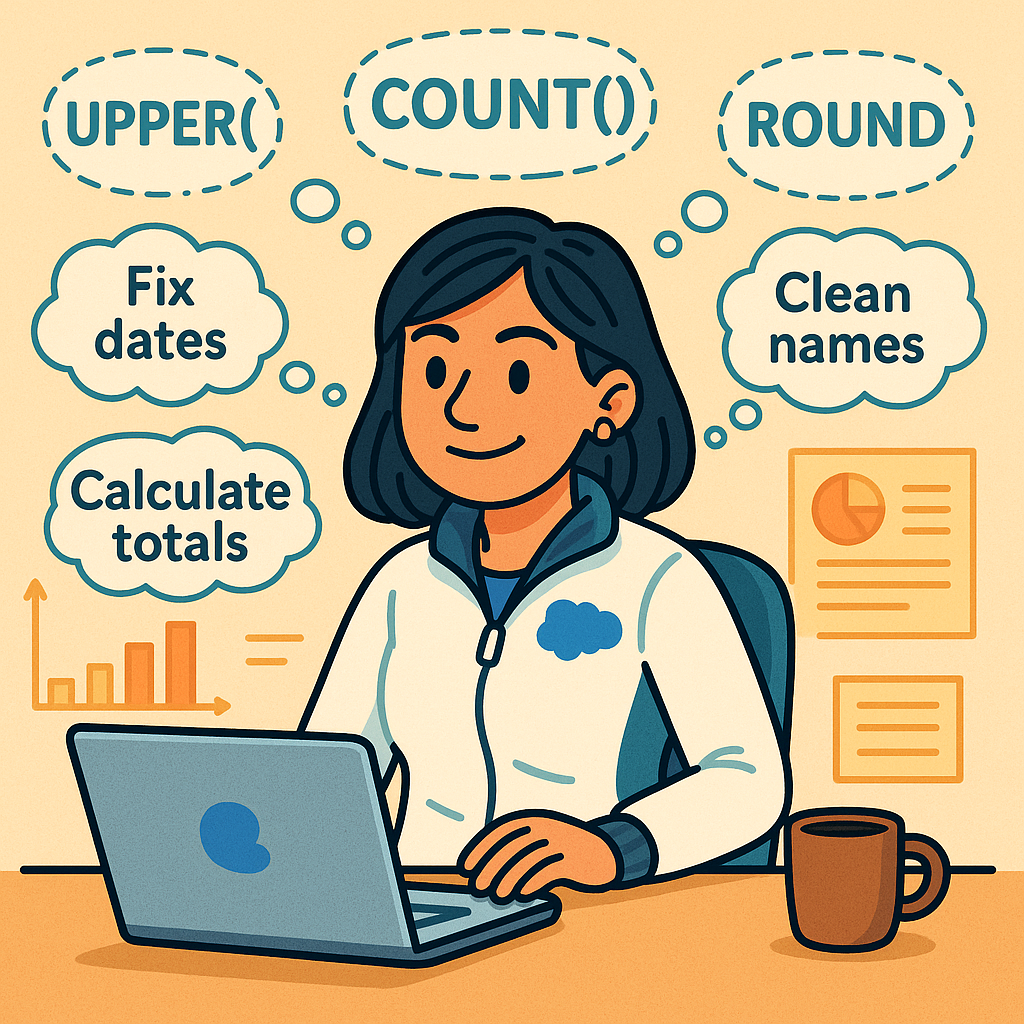
  • The Smart Tools in Your Data Toolbox: A Story About SQL Functions


    Meet Kavya, a project coordinator at an e-commerce company. Every day, she pulls data for the marketing and sales teams.

    But soon, she finds herself repeating the same tasks:

    • Formatting dates
    • Calculating totals
    • Cleaning up messy names
    • Counting records
    • Finding top orders

    She thinks:

    “There must be an easier way than doing this manually every time…”

    That’s when she learns about SQL functions—the smart tools inside SQL that do the hard work for you.

    What is a SQL Function?

    A function is like a mini-machine inside SQL.

    You give it some input → it gives you back a result.

    There are two kinds:

    1. Built-in SQL Functions
      (e.g., UPPER(), ROUND(), COUNT(), GETDATE())
    2. User-Defined Functions
      (You can create your own custom logic, like “Get Employee Age”)

    Chapter 1: Formatting Made Easy

    Kavya needs to show order dates in YYYY-MM-DD format.

    She learns:

    SELECT CONVERT(VARCHAR, OrderDate, 23) FROM Orders;

    “Wow, I don’t need Excel to fix this anymore!”

    Chapter 2: Cleaning Up Messy Names

    Some names are saved as “john doe” or “   Sarah   ”.

    Kavya uses:

    SELECT TRIM(UPPER(CustomerName)) FROM Customers;

    Now they’re clean, capitalized, and professional.

    Chapter 3: Doing Math Instantly

    Marketing wants to add 10% discount on a report preview.

    Kavya just writes:

    SELECT Price, Price * 0.9 AS DiscountedPrice FROM Products;

    The boss says:

    “You saved me hours of manual calculations!”

    Chapter 4: Getting Answers at a Glance

    Need to know:

    • Total customers? → COUNT(*)
    • Average order? → AVG(TotalAmount)
    • Most recent signup? → MAX(SignupDate)
    SELECT COUNT(*), AVG(TotalAmount), MAX(SignupDate)
    FROM Customers;

    Kavya calls these her “one-liner answers.”

    Chapter 5: Custom Function Magic

    Later, her developer team builds this for her:

    CREATE FUNCTION GetEmployeeAge (@DOB DATE)
    RETURNS INT
    AS
    BEGIN
       RETURN DATEDIFF(YEAR, @DOB, GETDATE());
    END

    Now Kavya can run:

    SELECT Name, dbo.GetEmployeeAge(BirthDate) FROM Employees;

    And get every employee’s age—just like that.

    Why SQL Functions Are Game-Changers

    • Fast: Process 10,000 rows in seconds
    • Reusable: Write once, use forever
    • Accurate: Eliminate manual errors
    • Helpful: Clean, calculate, format, validate—automatically

    Conclusion: SQL Functions Are Your Everyday Data Superpowers

    Kavya no longer dreads data prep. With SQL functions, she:

    • Formats dates
    • Cleans names
    • Calculates values
    • Summarizes data
    • Builds smarter reports

    “SQL functions don’t just answer questions—they save time, energy, and mistakes.”

    From routine cleanup to powerful analysis, functions make SQL feel like magic.

  • Chef Siva’s Magic Recipe – A Story About Procedures


    Characters:

    • Chef Siva – A master chef in a busy restaurant.
    • Waiter Ravi – Takes customer orders.
    • Kitchen – Like a database.
    • Recipe Book – Like stored procedures.

    The Story:

    Every day, customers come to Chef Siva’s restaurant and order different dishes. Waiter Ravi runs to the kitchen and gives Chef Siva the order:

    “One Masala Dosa, please!”

    Now, imagine if every time someone ordered Masala Dosa, Chef Siva had to remember all the steps:

    • Take batter from fridge
    • Heat the pan
    • Pour batter
    • Cook one side
    • Add filling
    • Fold and serve

    Doing this manually every time is tiring.

    So one day, Chef Siva writes down all the steps in a recipe book and tells Ravi:

    “From now on, whenever someone orders Masala Dosa, just say ‘Run Recipe for Masala Dosa’ and I’ll follow the steps.”

    This recipe becomes a stored procedure.

    What is a Procedure (in database terms)?

    A procedure is a saved set of SQL commands (like a recipe) that you can run again and again by calling its name.

    Example:

    CREATE PROCEDURE GetCustomerOrders
        @CustomerID INT
    AS
    BEGIN
        SELECT * FROM Orders WHERE CustomerID = @CustomerID;
    END;

    Now, instead of writing the query each time, you just run:

    EXEC GetCustomerOrders 123;

    Why Do We Need Procedures?

    • Reusability: Write once, use many times.
    • Simplicity: Others can use it without knowing SQL details.
    • Security: You can give users access to procedures, not direct tables.
    • Maintenance: If logic changes, update the procedure, not every report/app.

    Final Scene

    :

    Chef Siva becomes famous – orders are served fast, Ravi doesn’t get tired explaining steps, and the kitchen is peaceful.

    “That’s the power of a procedure – one smart recipe can serve hundreds without chaos!”

  • Through the Looking Glass: How SQL Views Help You See the Right Data

    Meet Neha, a data analyst at a company called GreenGlow Organics.

    Every week, her boss asks:

    “Can you send me a list of active customers and their last purchase amount?”

    Neha opens her SQL tool and writes a query that:

    • Joins 3 tables
    • Filters only active customers
    • Picks just a few columns

    She copies it, pastes it, tweaks it… every. single. time.

    Finally, she asks:

    “Isn’t there a way to save this query so I don’t have to rewrite it every week?”

    Her colleague smiles:

    “Yes! It’s called a view.”

    What is a SQL View?

    A view is like a saved query that acts like a virtual table.

    • It doesn’t store data itself.
    • It just shows the result of a query—like a window into the data.
    • You can treat it almost like a table in SELECT statements.

    Neha’s View in Action

    Here’s the original query Neha kept reusing:

    SELECT c.CustomerName, o.LastOrderAmount
    FROM Customers c
    JOIN Orders o ON c.CustomerID = o.CustomerID
    WHERE c.IsActive = 1;

    She turned it into a view:

    CREATE VIEW ActiveCustomerSummary AS
    SELECT c.CustomerName, o.LastOrderAmount
    FROM Customers c
    JOIN Orders o ON c.CustomerID = o.CustomerID
    WHERE c.IsActive = 1;

    Now, every time her boss asks, she just runs:

    SELECT * FROM ActiveCustomerSummary;

    Why Use a View?

    1. 

    Saves Time

    You write the logic once, then reuse it anytime.

    2. 

    Improves Security

    You can show only specific columns from a table—perfect for hiding salary, passwords, or internal notes.

    3. 

    Simplifies Complex Queries

    Views can hide multiple joins, filters, and calculations from users who just need the output.

    4. 

    Keeps Things Organized

    You can make a view for:

    • Sales summary
    • Active users
    • Quarterly reports

    And keep raw tables untouched.

    Analogy: The Restaurant Kitchen

    Think of the database as a kitchen full of ingredients (raw tables).

    A view is like a prepared plate—ready to serve, arranged exactly how the diner (user) wants it.

    You don’t move the ingredients, you just show them nicely.

    Conclusion: Views Are the Shortcut with Power

    Neha now builds views for every report—and her team loves how easy it is to pull clean, formatted data.

    “It’s like having a lens that shows just the data I want, without changing the original.”

    That’s the magic of SQL views:

    One query. Many uses. Zero mess.

  • Building Bricks of HR: How Maya Created Her Company’s First Database

    Meet Maya, the office manager at a small but growing company called BrightTech. With 20 employees and lots of spreadsheets flying around, she faced a big challenge:

    “How do I keep track of who works here, their jobs, their time off, and salaries—without losing my mind?”

    Her solution?

    Build a database.

    (And no, Maya wasn’t a programmer.)

    STEP 1: Understand the People and Process

    Maya took a notebook and listed what she needed to manage:

    • Employees and their contact info
    • Job titles and departments
    • Who reports to whom
    • Leave (vacation) records
    • Salary information
    • Performance reviews

    She realized:

    “This is just organized information. I can split this into tables.”

    STEP 2: Sketch the Tables Like a Mind Map

    Here’s what Maya came up with:

    Table NameWhat It Stores
    EmployeesBasic info: name, email, phone, hire date
    DepartmentsDepartment names like HR, Sales, IT
    JobsTitles like Developer, Analyst, Manager
    SalariesEmployee ID, amount, date
    LeaveRecordsVacation requests by date and reason

    STEP 3: Define Relationships Between Tables

    Maya learned an important lesson:

    “Don’t repeat information—connect it instead.”

    So instead of putting the department name in every employee row, she just linked it with a key.

    Here’s how they connect:

    • Every employee belongs to one department
    • Every employee has one job title
    • Every salary record is for one employee
    • Leave records are also for one employee

    These links are called relationships.

    STEP 4: Write Simple Table Designs

    Maya then defined the tables using plain English (translated later to SQL):

    Employees Table

    • EmployeeID (primary key)
    • FirstName
    • LastName
    • Email
    • Phone
    • HireDate
    • DepartmentID → links to Departments
    • JobID → links to Jobs

    Departments Table

    • DepartmentID (primary key)
    • DepartmentName

    Jobs Table

    • JobID (primary key)
    • JobTitle

    Salaries Table

    • SalaryID (primary key)
    • EmployeeID → links to Employees
    • Amount
    • EffectiveDate

    LeaveRecords Table

    • LeaveID (primary key)
    • EmployeeID → links to Employees
    • LeaveDate
    • Reason
    • Status

    STEP 5: Sample SQL Table Code (Optional for Tech Teams)

    CREATE TABLE Employees (
      EmployeeID INT PRIMARY KEY,
      FirstName VARCHAR(50),
      LastName VARCHAR(50),
      Email VARCHAR(100),
      Phone VARCHAR(15),
      HireDate DATE,
      DepartmentID INT,
      JobID INT
    );
    
    CREATE TABLE Departments (
      DepartmentID INT PRIMARY KEY,
      DepartmentName VARCHAR(50)
    );
    
    CREATE TABLE Jobs (
      JobID INT PRIMARY KEY,
      JobTitle VARCHAR(50)
    );
    
    CREATE TABLE Salaries (
      SalaryID INT PRIMARY KEY,
      EmployeeID INT,
      Amount DECIMAL(10, 2),
      EffectiveDate DATE
    );
    
    CREATE TABLE LeaveRecords (
      LeaveID INT PRIMARY KEY,
      EmployeeID INT,
      LeaveDate DATE,
      Reason VARCHAR(100),
      Status VARCHAR(20)
    );

    STEP 6: How Maya Uses the Database

    • The HR team views all employees and their departments easily.
    • The Finance team runs reports from the Salaries table.
    • The Manager can pull all vacation history from LeaveRecords.
    • Everyone gets clean data and no more messy spreadsheets!

    Conclusion: Databases Make It Work, Simply

    Maya didn’t start with code—she started with understanding the business.

    She broke it into real-life categories, designed simple linked tables, and let the database do the work.

    “I didn’t build software,” she said.

    “I just built a better way to organize people and decisions.”

  • From Paper to Power: Why Databases Run the Modern World

    Once upon a time, in a small bakery called SweetBytes, the owner Lila tracked everything on paper.

    Customer orders. Daily sales. Favorite cupcakes. Even birthdays.

    One day, she needed to find out:

    “Who ordered the most cupcakes last year?”

    Lila pulled out seven folders, flipped through hundreds of pages, and after 2 hours, still wasn’t sure.

    She sighed:

    “There has to be a better way.”

    Chapter 1: Spreadsheets to the Rescue… Almost

    Her nephew set up an Excel sheet.

    • Sheet 1: Orders
    • Sheet 2: Customers
    • Sheet 3: Recipes

    It worked well for a while… until:

    • The file got too big and slow
    • Two people edited it at once and lost changes
    • She accidentally deleted a formula column
    • The computer crashed and she hadn’t saved

    Lila realized:

    Spreadsheets are like notebooks—helpful, but fragile.

    Chapter 2: Discovering the Power of Databases

    One day, a customer named Ayaan, who worked in IT, saw her frustration.

    He said:

    “What if I told you all your data could be stored safely, shared easily, and searched instantly?”

    “What is this magic?” Lila asked.

    Ayaan explained:

    “It’s called a database. Think of it like a super-powered filing system that lives in the cloud or on a server.”

    “You can ask it questions like:

    ‘Show me all orders from last December by customers who love chocolate.’

    And it gives you the answer in seconds.”

    Chapter 3: How Databases Help Everyday Life

    Lila was amazed. Here’s what she learned:

    1. Fast Search & Organization

    Databases let her find any customer, order, or payment instantly—no more digging through folders.

    2. Reliability & Safety

    Even if her laptop broke, the database in the cloud kept everything safe.

    3. Connecting to Her Website

    Ayaan connected the bakery’s website to the database.

    Now customers could:

    • Place orders online
    • See order history
    • Get birthday reminders automatically

    All powered by a database in the background.

    4. Analyzing Sales

    She could now see:

    • Most popular cupcake flavors
    • Best sales days
    • Which customers to reward

    Data became decisions, not just information.


    Chapter 4: Why Paper and Excel Fall Short

    ToolLimitations
    PaperCan’t search, sort, or share; gets lost or damaged
    ExcelWorks for small data; breaks with scale; hard to manage with teams
    DatabaseBuilt for performance, sharing, analysis, and connection to apps and systems


    Chapter 5: Real-World Connections

    Databases now power everything around Lila:

    • Her email reminders come from customer records in the database
    • Her sales reports are built with database queries
    • Her mobile app connects to the same data
    • Her nephew uses the database to run AI models to predict trends

    Conclusion: A Database Is the Brain Behind the Business

    Lila went from paper trails to digital power.

    She learned that:

    “A database isn’t just where you store data—it’s how you use data wisely, connect apps, grow your business, and make life easier.”

    Whether you run a bakery or a billion-dollar app,

    the heart of it all is a database.

  • The Language of Data: How Smart Naming Built a Kingdom of Clarity

    Once upon a time in the Land of Datapolis, a young data architect named Aarav was given a mighty mission:

    “Design the data system for the Kingdom’s growing business empire.”

    He had all the power—he could create any table, name any column, and define how all the data in the land would be stored. But his mentor, an old master named Sir Schema, gave him one golden rule:

    “The name you give is the soul of the data. Choose carelessly, and confusion will reign.”

    Chapter 1: The First Mistake – The Table of Chaos

    Aarav created his first table like this:

    CREATE TABLE Xyz123 (
        a1 INT,
        b2 VARCHAR(50),
        c3 DATE
    );

    It worked… but no one knew what it meant.

    Business Analyst:

    “What’s in b2?”

    Developer:

    “Why is it called Xyz123? Is it for products or invoices?”

    Aarav had built a data dungeon, not a data kingdom.

    Chapter 2: Naming with Intention

    Sir Schema smiled and said:

    “Let your table names speak for themselves. Let columns tell a story.”

    Aarav started over.

    CREATE TABLE CustomerOrders (
        OrderID INT PRIMARY KEY,
        CustomerID INT,
        OrderDate DATE,
        TotalAmount DECIMAL(10,2)
    );

    Now, anyone could understand the table’s purpose just by reading it.

    • CustomerOrders: Clearly a list of purchases by customers
    • OrderDate: No confusion about what the date means
    • TotalAmount: Tells exactly what the number represents

    Aarav realized:

    “Naming isn’t for the computer. It’s for every human who will ever read this.”

    Chapter 3: Rules for a Kingdom of Clarity

    Aarav set some sacred rules that everyone followed:

    1. Use Singular Nouns for Table Names
      • Customer, not Customers
      • Invoice, not Invoices
      • Because each row is one item
    2. Name for Meaning, Not Convenience
      • Use CreatedDate, not just Date
      • Use ProductPrice, not just Price (context matters!)
    3. Stick to Consistent Naming Patterns
      • FirstName, LastName, PhoneNumber
      • Avoid mixing styles like first_name, LastName, phoneNo
    4. Avoid Reserved Words and Shortcuts
      • Don’t name a table Order (it’s a reserved SQL word)
      • Avoid lazy names like info, data, temp
    5. Use Prefixes or Suffixes When It Adds Value
      • UserID, CustomerID (foreign keys)
      • IsActive, HasEmail for boolean flags

    Chapter 4: The Long-Term Win

    Years passed. New analysts, engineers, and even interns joined the Kingdom.

    They read Aarav’s tables and instantly understood what each field meant.

    They built dashboards, wrote queries, and made decisions without guessing.

    Because Aarav had named everything with clarity, there was:

    • Less confusion
    • Fewer bugs
    • Faster onboarding
    • Happier teams

    His data system became the standard for the entire land.

    Chapter 5: The Naming Checklist of Champions

    Before creating any table or column, Aarav taught everyone to ask:

    • What real-world thing does this represent?
    • Would a non-technical person understand the name?
    • Is the name too short, vague, or misleading?
    • Will this still make sense a year from now?
    • Are we following our naming conventions?

    Conclusion: A Name is a Gift to the Future

    Aarav’s story teaches us this:

    Every column and table you create is a message to the next person. Will it guide them—or confuse them?

    In the world of databases, smart naming is kindness, clarity, and power all at once.

  • Building the Data Café: A Story About Tables and Ingredients (aka Rows)

    Meet Suvan, a young entrepreneur opening a small café. He wants to track all his menu items and sales digitally. So, he decides to build his first database.

    And like every good recipe, it starts with the right structure.

    Chapter 1: Creating the Table – Designing the Blueprint

    Suvan:

    “I need a place to store all my dishes—name, price, and category.”

    Enter SQL.

    He creates a table called Menu:

    CREATE TABLE Menu (
        DishID INT PRIMARY KEY,
        DishName VARCHAR(50),
        Category VARCHAR(20),
        Price DECIMAL(5,2)
    );

    What does this mean?

    • DishID is a number that uniquely identifies each dish.
    • DishName holds text up to 50 characters.
    • Category helps organize items (e.g., ‘Dessert’, ‘Drink’).
    • Price allows for decimals, like 12.50.

    Chapter 2: Inserting Data – Adding Dishes to the Menu

    Now that the table is ready, Suvan starts adding dishes:

    INSERT INTO Menu (DishID, DishName, Category, Price)
    VALUES (1, 'Masala Dosa', 'Main Course', 7.99);

    He adds a few more:

    INSERT INTO Menu VALUES 
    (2, 'Filter Coffee', 'Beverage', 2.50),
    (3, 'Gulab Jamun', 'Dessert', 3.00);

    Each row is like an ingredient added to the kitchen—real data now lives inside the Menu table.

    Chapter 3: Mistakes & Fixes

    Oops! Suvan entered a duplicate DishID.

    The system throws an error:

    “Primary key violation.”

    He learns:

    • Every DishID must be unique.
    • SQL protects your data from accidental duplication.

    Chapter 4: Looking Inside

    Suvan checks if his menu looks good:

    SELECT * FROM Menu;

    It returns:

    1 | Masala Dosa   | Main Course | 7.99  
    2 | Filter Coffee | Beverage    | 2.50  
    3 | Gulab Jamun   | Dessert     | 3.00

    He smiles—it’s working.

    Chapter 5: Bulk Insert – Getting Ready for Launch

    On launch day, he adds more dishes with one query:

    INSERT INTO Menu (DishID, DishName, Category, Price)
    VALUES 
    (4, 'Idli Vada', 'Main Course', 5.50),
    (5, 'Lassi', 'Beverage', 3.25),
    (6, 'Rasgulla', 'Dessert', 3.10);

    No need for one-by-one entry—bulk insert saves time.

    Lessons Suvan Learned:

    1. Use CREATE TABLE to build the foundation.
    2. Use INSERT INTO to feed data into your table.
    3. Set a primary key to avoid duplicates.
    4. Insert multiple rows at once for speed.
    5. Always SELECT * to verify your data.

    Conclusion: Your Table Is Your Café

    In Suvan’s story, the SQL table is like a kitchen shelf:

    • Columns define what to expect (name, type, price)
    • Rows are actual dishes added day by day
    • SQL helps keep everything organized, clean, and easy to update

  • The Timekeeper: A Story About Dates, Times, and Smarter SQL

    Meet Ava, a data analyst for a fitness app. Her job is to help teams understand when users sign up, complete workouts, or cancel their plans. But there’s one tricky character she deals with every day: Time.

    Let’s follow her journey as she learns how to tame dates and times in SQL.

    Chapter 1: The Clock Ticks – Why Date/Time Matters

    One day, Ava was asked:

    “How many users signed up last month?”

    She opened the database. The SignupDate column looked like this:

    2025-03-01 08:12:45  
    2025-03-22 17:33:00  
    2025-04-01 09:01:15

    At first glance, it was just a list. But Ava knew each timestamp held meaning:

    • The date told her when something happened.
    • The time helped her understand user habits—morning vs. night logins.
    • Together, they formed a timeline of events.

    Without handling these properly, her results would be inaccurate, confusing, or misleading.

    Chapter 2: Querying the Clock – Using WHERE with Dates

    To find signups in March 2025, she wrote:

    SELECT * FROM Users
    WHERE SignupDate BETWEEN '2025-03-01' AND '2025-03-31 23:59:59';

    This gave her every record between the start and end of March.

    She also learned she could use functions like:

    WHERE MONTH(SignupDate) = 3 AND YEAR(SignupDate) = 2025

    But she realized: performance is better when using BETWEEN with exact ranges, because it’s easier to index.

    Chapter 3: Trimming the Time – When Only Dates Matter

    Sometimes, her teammates only cared about dates, not exact times. So she used:

    SELECT CAST(SignupDate AS DATE) AS SignupDay

    or in SQL Server:


    CONVERT(DATE, SignupDate)

    This helped her group users by date:

    SELECT CONVERT(DATE, SignupDate) AS SignupDay, COUNT(*)
    FROM Users
    GROUP BY CONVERT(DATE, SignupDate);

    Chapter 4: Time Zones – The Invisible Trap

    Ava later noticed that users in California signed up at “midnight”, but the system said it was “8 AM”.

    Why? The database stored everything in UTC!

    So she learned to:

    • Convert to local time zones in queries or app logic
    • Store timestamps in UTC for consistency
    • Use AT TIME ZONE in SQL Server or adjust manually in others

    Chapter 5: Comparing Across Time – INTERVAL and DATEDIFF

    Her manager asked:

    “How many users haven’t logged in for 30 days?”

    Ava used:

    SELECT * FROM Users
    WHERE DATEDIFF(DAY, LastLoginDate, GETDATE()) > 30;

    She also used DATEADD() to shift time:

    WHERE LastLoginDate < DATEADD(DAY, -30, GETDATE());

    Now she could track churn, re-engagement, and seasonal activity with confidence.

    Chapter 6: The Clean-Up – Best Practices Ava Learned

    1. Always store time in UTC; convert only for display.
    2. Use date functions carefully—some are slow if misused.
    3. Index date columns if used frequently in filters.
    4. Store DATE and DATETIME with intent:
      • DATE when time isn’t needed
      • DATETIME for tracking moments/events
    5. Handle null dates wisely:
    WHERE LastLoginDate IS NOT NULL

    Conclusion: Time Is Data’s Best Friend—If You Respect It

    Dates and times are more than just numbers—they tell stories, show trends, and help drive decisions.

    Thanks to SQL and a few smart functions, Ava became the Timekeeper of her company—cleaning, filtering, and analyzing moments that matter.

  • Dinner Table Conversations with SQL: How SELECT, WHERE, GROUP BY & ORDER BY Work Together

    Imagine SQL as a friendly restaurant host named Sam. Every day, he helps you pick exactly what you want from the big menu of data.

    Let’s follow Sam through a day in his life, guiding customers through a query.

    1. SELECT – What Do You Want to See?

    Sam (the host):

    “Welcome! What do you want to see today? The whole menu? Or just the desserts?”

    SELECT * FROM Menu;
    -- or
    SELECT DishName, Price FROM Menu;

    Why Use It?

    Use SELECT * when exploring all columns (for learning/debugging).

    Use specific columns (SELECT DishName, Price) when building reports or dashboards.

    2. FROM – Where Is It Coming From?

    Customer:

    “Show me the items… but from the Dessert Menu, not the main course.”

    FROM DessertMenu

    Why Use It?

    FROM tells SQL which table to pull data from—just like choosing a menu section in a restaurant.

    3. WHERE – Filtering the List

    Sam:

    “Got it! Now, do you want to see everything, or only dishes under $10?”

    WHERE Price < 10

    Why Use It?

    The WHERE clause filters data to show only what meets your condition, like selecting vegetarian dishes or orders from a specific city.

    4. GROUP BY – Summarizing Similar Things

    Sam:

    “Would you like to know how many items we have in each category?”

    SELECT Category, COUNT(*) FROM Menu GROUP BY Category;

    Why Use It?

    GROUP BY is used when you want to summarize data (like totals, counts, averages) for each group—like how many desserts, how many starters.

    5. ORDER BY – Sort It Your Way

    Sam:

    “Should I list them by price? Or alphabetically?”

    ORDER BY Price ASC

    Why Use It?

    ORDER BY sorts your results—by name, date, sales, or any column—ascending or descending.

    Let’s Put It All Together

    Here’s how Sam handles a full customer request:

    Customer:

    “I want to see the name and price of all desserts under $10, grouped by category, and sorted from cheapest to most expensive.”

    Sam (in SQL):

    SELECT DishName, Price
    FROM DessertMenu
    WHERE Price < 10
    GROUP BY DishName, Price
    ORDER BY Price ASC;

    Conclusion:

    Each part of a SQL query plays a role—like team members at a restaurant:

    • SELECT – what’s on the plate
    • FROM – which kitchen it’s coming from
    • WHERE – picky customer requests
    • GROUP BY – organized report for the chef
    • ORDER BY – plating it neatly

    With just a few words, you can turn a mountain of data into a made-to-order report.